Video correction editor

Correct a video on your device, compare it with the original, and export a separate file without uploading your footage.

Open a video to adjust exposure, noise reduction and sharpening.

Save using a different name or location from the original video.
Guide & compatibility

What you can adjust with Frameclear

Adjust exposure, visible noise and edge definition in your browser. Frameclear cannot fully reconstruct information that was lost during recording. Start with a short clip and compare the result with the original.

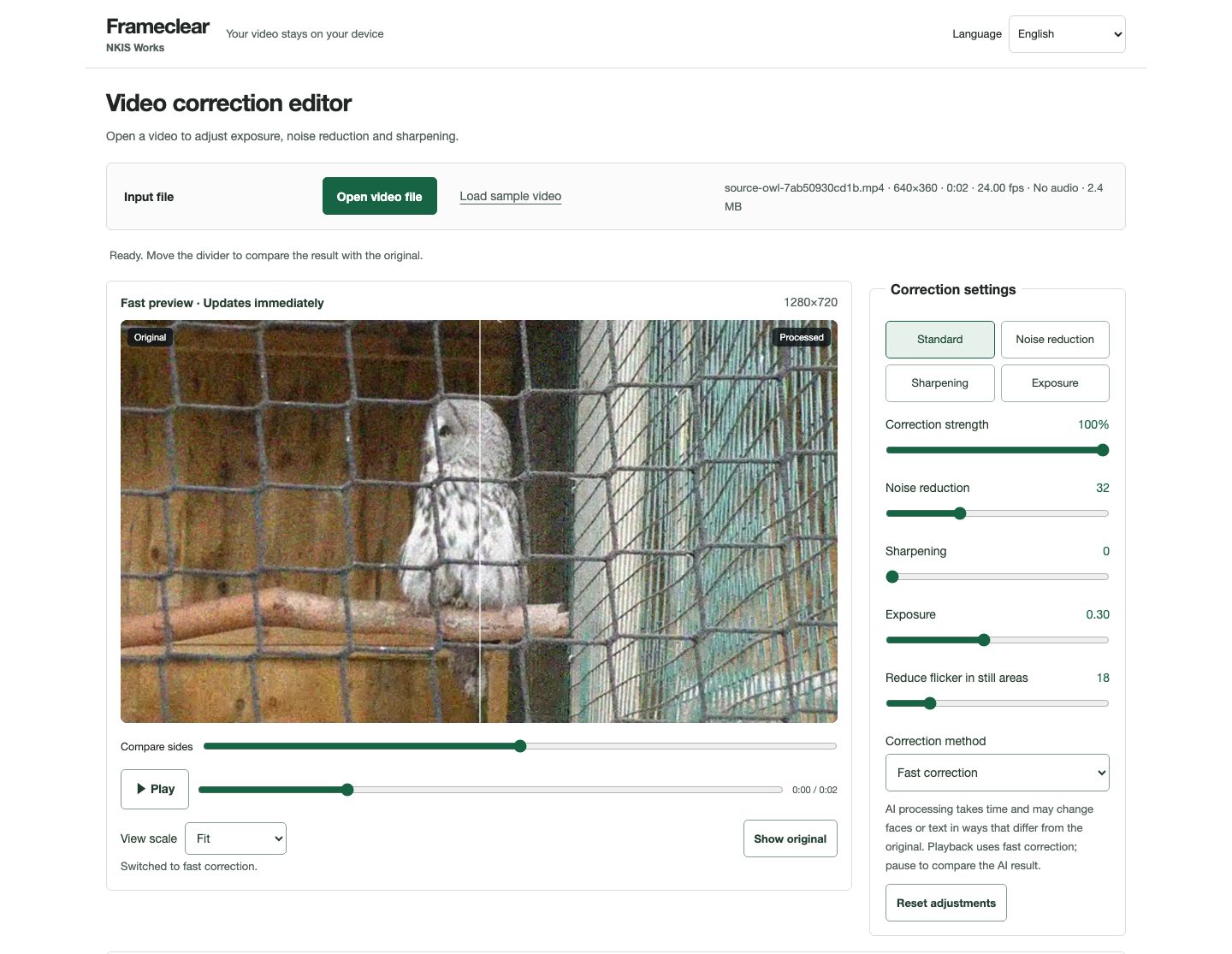
Editor screen and actual exports

Editor screen checked on 16 October 2026 (English interface). Real footage with artificial noise added, opened with fast correction and exposure +0.30.
Editor screen checked on 16 October 2026 (English interface). Real footage with artificial noise added, opened with fast correction and exposure +0.30. Great grey owl (Strix nebulosa) — The Nature Box · Source · CC BY-SA 3.0

AI denoising

AI denoising on real footage with artificial noise added. Stronger preset, strength 100%, 640×360, 24fps, 2 seconds, no audio. Check for blurred detail and smearing in motion.

Great grey owl (Strix nebulosa) — The Nature Box · Source · CC BY-SA 3.0

Brightness correction

Brightness correction on real night footage: a two-second excerpt resized to 640×360 with audio removed. Fast correction, exposure +0.45, strength 100%. Compare the shadows along the river and check for clipped highlights.

Night in Skopje video 2015 2.webmhd.webm — Спасимир · Source · Videos and comparison images: CC BY-SA 3.0

Three steps

  1. Open a video

    Choose a video on your device or try the sample. Whether a file can be opened depends on the video and audio codecs your browser supports.

  2. Adjust and compare

    Change exposure, noise reduction and sharpening, then move the comparison divider to inspect the result. Strong settings can make edges or textures look unnatural.

  3. Save a separate file

    Export the whole video or choose start and end times. Set the output size, frame rate and audio, then play the saved file to check both picture and sound.

Export and compatibility

For AI-corrected videos, choose “Save video (supports AI)”. “Record during playback (fast correction)” uses fast correction only and takes the video’s playback time. MP4 and WebM support depends on your device and browser. Long videos or large output sizes may slow down or fail if memory or free storage is insufficient. When recording, “Keep original” uses the source frame rate, or 30 fps if it cannot be read. When recording, WebM may use VP8.

Your video and AI correction

Videos and frames are processed on your device without being sent to an external server. First use of AI downloads model and runtime files. Save the result under a different name or in a different folder from the original video. Direct saving can replace an existing file if you select it. AI can invent facial details or text, so do not use its output as factual evidence.